

If you have lost the Admin password on a ZKTeco fingerprint access control device, you may be able to access the Admin menu using the Tamper Switch method.
This method does not require a computer, network connection, IP address, or password-reset software.
Instead, it uses the physical Tamper Switch built into the device.
Important: This method only applies to compatible ZKTeco devices equipped with a Tamper Switch. The exact behavior may vary depending on the device model and firmware.
Compatible ZKTeco Models
The Tamper Switch method has been reported to work with several ZKTeco fingerprint access control devices, including:
- ZKTeco F18
- ZKTeco F22
- ZKTeco F28
- ZKTeco F8
- ZKTeco F7
- ZKTeco F7 Plus
- ZKTeco F21
- ZKTeco F19
- ZKTeco SF-200
Compatibility may vary between hardware revisions and firmware versions.
What Is the Tamper Switch?
The Tamper Switch is a physical switch inside the ZKTeco device that detects when the device has been removed from its mounting position.
On compatible models, pressing this switch during the device startup process can temporarily bypass the normal Admin verification and allow access to the Menu.
You normally do not need to connect the device to a PC or know its IP address.
Step 1 – Power Off the Device
Disconnect the power supply from the ZKTeco device.
Make sure the device is completely powered off before continuing.
Step 2 – Press and Hold the Tamper Switch
Locate the Tamper Switch on the back or inside of the ZKTeco device.
Press and hold the Tamper Switch.

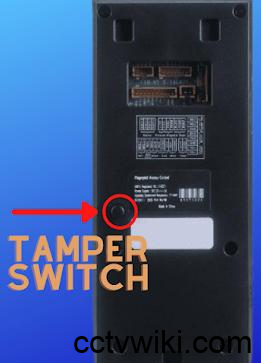
While continuing to hold the switch, power on the device.
The original procedure specifies powering on the device while keeping the Tamper Switch pressed.
Tip: The exact physical location of the Tamper Switch depends on the model. Do not disassemble the device beyond what is necessary to access the switch.
Step 3 – Wait for the Device to Boot
Continue holding the Tamper Switch while the ZKTeco device starts.
Wait until the device has completely finished booting and the normal main screen appears.
Once the main screen is displayed, release the Tamper Switch.
Step 4 – Wait 30–40 Seconds
After releasing the Tamper Switch, remain on the main screen.
Wait approximately 30–40 seconds.
This timing is important for the procedure described by Keysecu.
Step 5 – Open the Menu
After waiting approximately 30–40 seconds, press the Menu button.
If the procedure is supported by your device, the Menu should become accessible without requiring the previous Admin password.
You can then enter the device’s administrative settings.
Step 6 – Remove or Change the Admin Settings
Once you have entered the Menu, navigate to the user or administrator management section.
Depending on the model, you may be able to:
- Remove the existing Admin privilege
- Delete the previous Admin user
- Register a new administrator
- Change the Admin password
- Configure other access-control settings
The exact menu names depend on the ZKTeco model and firmware.
Important Timing Limitation
The Tamper Switch method has a limited time window.
According to the original procedure, if more than approximately 40 seconds have passed after the device finishes booting, the Menu may no longer be accessible using this method.
If the Menu still requests the Admin password:
- Power off the device.
- Press and hold the Tamper Switch.
- Power on the device.
- Keep holding the switch until the device finishes booting.
- Release the switch when the main screen appears.
- Wait approximately 30–40 seconds.
- Press Menu.
If the Method Does Not Work
If the Admin password is still required, check the following:
1. Check the Device Model
Make sure your device actually has a physical Tamper Switch.
This method is not a universal password-reset procedure for all ZKTeco devices.
2. Check the Tamper Switch
Make sure the switch is actually being pressed during startup.
A damaged, disconnected, or incorrectly positioned Tamper Switch can prevent the procedure from working.
3. Check the Timing
The timing is critical.
Release the switch only after the device has completely booted to the main screen, then perform the Menu operation within the supported time window.
4. Check the Firmware
Different firmware versions may implement the Tamper Switch behavior differently.
If the procedure does not work on a supported model, the firmware version may use a different recovery mechanism.
Does This Method Delete User Data?
The Tamper Switch procedure described here is intended to provide temporary access to the Menu so that the administrator settings can be changed.
It is not the same as performing a factory reset.
However, before deleting an Admin account or changing device settings, make sure you understand the consequences for the existing users, fingerprints, cards, access permissions, and attendance data.
Avoid using a factory-reset function unless you are certain that you have backed up any data that needs to be preserved.
Tamper Switch vs. Super Password
ZKTeco devices may support different password-recovery methods depending on the model.
The Tamper Switch method uses the physical switch inside the device and does not require generating a password.
The Time-Based/Super Password method, when supported, uses information displayed by the device to generate a temporary password.
Therefore:
| Method | Requires PC | Requires Network | Requires Tamper Switch | Generates Password |
|---|---|---|---|---|
| Tamper Switch | No | No | Yes | No |
| Time-Based Super Password | No | No | No | Yes |
| Software Method | Usually | Usually | No | No |
Choose the method that matches your ZKTeco model and the tools available to you.
Security Notice
Only use this procedure on a ZKTeco device that you own or are authorized to administer.
Access-control and biometric devices can contain sensitive information, including fingerprints, cards, user identities, and attendance records.
After recovering Admin access, we recommend configuring a new administrator credential and reviewing the device’s user and security settings.
Summary
The Tamper Switch recovery procedure can be summarized as follows:
Power Off → Press and Hold Tamper Switch → Power On → Wait for Complete Boot → Release Tamper Switch → Wait 30–40 Seconds → Press Menu → Access Admin Settings
This method can be useful for compatible ZKTeco fingerprint access-control devices when the Admin password is unavailable and there is no convenient way to connect the device to a computer or management software.
If the procedure does not work, verify the exact model and firmware before trying another recovery method.