



Saturday afternoon, court two. Was the ball on the line or out? Five minutes of argument, nobody watching from the
side is certain either, and in the end neither player gives way. The heat goes out of it and play moves on. Meanwhile
four cameras on the wall have that rally on video — clear, good angle — and nobody in the building can watch it back.
CCTV Stadium exists for that moment. It is an Android and iOS app that turns the CCTV cameras your
venue already owns into an instant-replay system. A player takes out a phone, scans the QR code at the
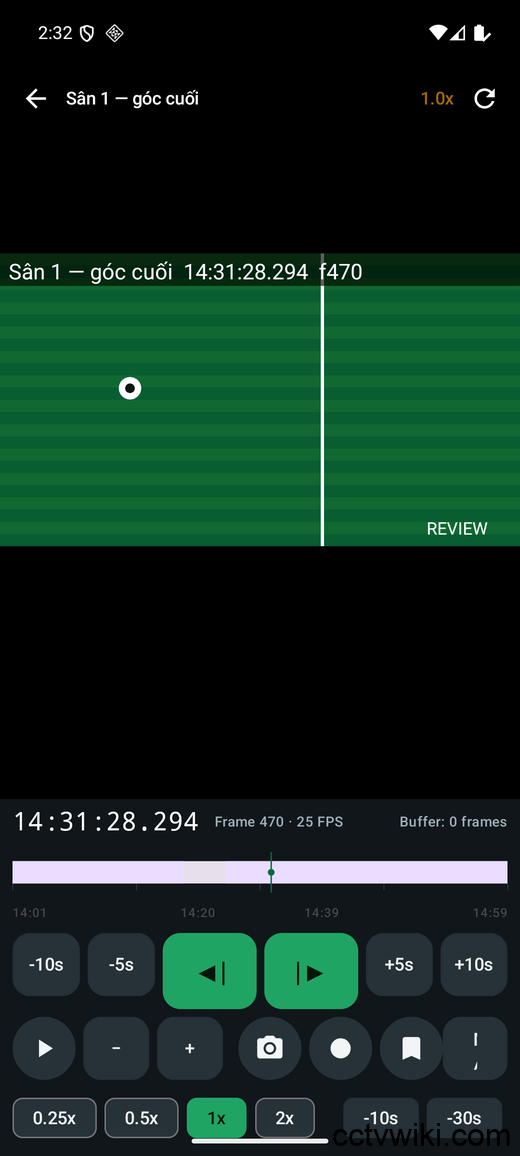
counter, drags the timeline back to the second, plays it at 0.25x and zooms into the line. Everyone looks, and play
restarts.

You already own most of the system
For anyone running a venue, there is no hardware to buy. No new recorder, no new cameras, no server,
no monthly subscription. The app talks straight to the recorder you already have, over your own Wi-Fi.
Trying it costs one sheet of A4 and a laminating pouch. If players don’t use it, take the sheet down and you’re out
nothing.
Now the part that might rule you out: this is a local-network-only app. No cloud, no P2P, no
watching from home over mobile data, no accounts, no middleman server. The player’s phone talks directly to your
recorder, inside your network. Footage never leaves the venue — which is why a lot of owners are happy to put a QR
code somewhere public.
You need three things — miss one and the app shows nothing
Without all three, the app has nothing to display:
| Requirement | What it means | Where to check |
|---|---|---|
| A Dahua or Dahua-OEM recorder | The venue already has a Dahua NVR/DVR, or an OEM unit running the Dahua platform. The cameras can be any brand — the requirement is the recorder. | The label on the recorder, or whoever installed your CCTV |
| The venue’s QR code | A code you generate yourself and print for the venue | You make it, free — see below |
| A phone on the venue Wi-Fi | The player must be on your Wi-Fi/LAN at the moment they watch | Wi-Fi has to reach the courts, not just the counter |
If your recorder is another brand, this app cannot work with it yet. Better you know now than after an afternoon of
trying.
Two network settings you do have to check
Nothing to buy, but not quite nothing to do. Confirm these two — skipping them is how players end up scanning the
code and staring at a black screen:
- Wireless client isolation must be off on the SSID players use. It also goes by “AP isolation”,
“station isolation” or “guest mode”, and it blocks devices on the same Wi-Fi from talking to each other — which is
the one thing the phone needs to do with the recorder. That setting is the single most common reason the app cannot
connect. - Phones and the recorder must be on the same network. If the guest Wi-Fi is walled off from the
network the recorder sits on, they will not find each other.
Both live in the router or access point’s settings page, and whoever installed your CCTV can change them in a few
minutes.
Issuing the QR code: what you fill in, what comes out
The whole of the owner’s job is one web page. Open the CCTV Stadium venue
QR generator, fill in a form, press the button, print. It is free, needs no login, and works on a phone.
What you fill in
- Venue name — exactly what players will see in the app and what is printed large on the poster.
For example: “Sunrise Pickleball — Courts 1–4”. - How to reach the recorder — one of two ways. Either its local IP address (recorder menu →
Network; something like 192.168.…, 10.… or 172.16–31.…), or, if your router keeps reassigning addresses,
discovery by serial number (recorder menu → System → Version). - Port — 37777 by default. Check the recorder menu → Network → Port, because some units use a
different one. - A viewer account — the step that matters most. On the recorder, create a separate account with
three rights only: Live View, Playback and Record Search. Put that account here. The generator refuses the
admin account outright. But a username is all it can refuse. The recorder, not the generator, decides
what that account can actually do — so create a new one instead of reusing an account you already have. - That account’s password — optional. Fill it in and players just scan and watch; the password is
encrypted inside the QR code, never in the clear. Leave it blank and the code carries no password at all:
each phone asks once, then keeps it in the device’s secure storage. Safer, but somebody has to read the password out
to every new player. - The camera list — one line each: channel number (counting from 1, as the recorder shows it) and
the name players will tap, such as “Court 1 — baseline”. The order you put them in is the order they appear in the
app.
What comes out
Press the button and out comes a downloadable QR code, and a ready-made A4 poster with your venue
name on it, the code printed large, the three steps for players, and the date the code stops working.

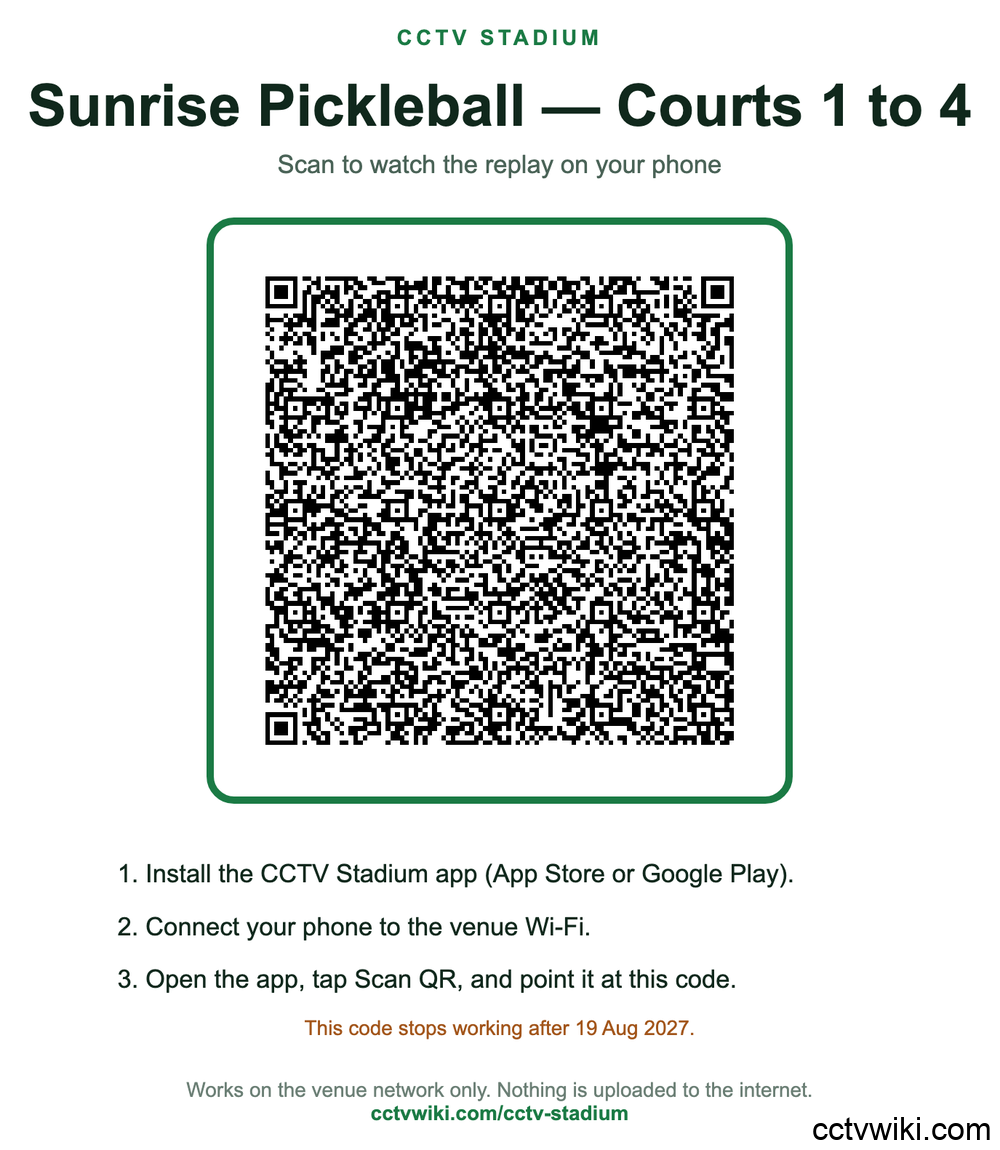
Three things worth knowing about that code:
- It is digitally signed. Alter a few pixels to point players’ phones somewhere else and the app
refuses to connect. - It only points inside your network. The generator will not issue a code aimed at the internet. So
a photo of the poster taken home is useless — off the venue Wi-Fi there is nothing to see. - It lasts 365 days by default. When it expires you generate a fresh one and reprint; players get a
clear “this code has expired” message instead of the app just hanging.
One practical note: the site does not store your venue — no database, no accounts, no saved copy
anywhere. Download or print before you leave the page, because there is nothing to retrieve afterwards. (It
counts requests per hour to keep robots out, and that is all it writes.)
Put it where players walk past and can stop for a second: the counter, beside the price list, at the entrance to each
court. Laminate it.
The player’s side: scan once, one tap after that
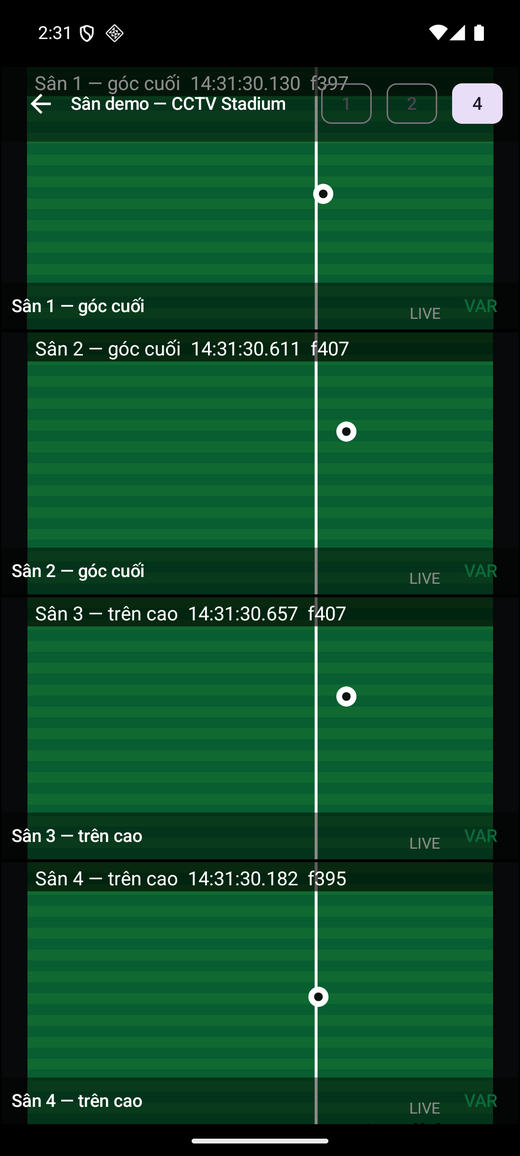
For the player there is not much to it: join the venue Wi-Fi → open the app → scan the QR at the counter → watch
live, or tap VAR to review. On later visits the venue is already in the list and it is one tap.
The live screen shows 1, 2 or 4 cameras at once; tap a tile for full screen. The VAR button opens review on whichever
camera is on screen, at that moment.
What the review screen does
- One-tap replay of the last 10, 30, 60 or 120 seconds. Jump 5 or 10 seconds either way.
- A zoomable timeline with time ticks, so you can land on the right second.
- 0.25x, 0.5x, 1x, 2x, freeze at any point, and step a single frame at a time.
- Digital zoom on the real decoded pixels, then pan around. A double tap jumps to 2x on the centre
of the picture; drag from there to the corner you care about. - The clock on screen is the recorder’s own timestamp, not the phone’s — the same number the camera
burns into the image, so both players are looking at the same moment. - Portrait or landscape, and the toolbar collapses for a bigger picture.
One detail to know in advance: stepping backwards replays frames the app is holding, so let the
moment play through first, then step back into it. Run past what it has and the app says so — “no more frames in the
buffer, play on and come back” — rather than freezing.


Keeping the moment: four ways that do different jobs
| Action | How | Where it ends up | Use it for |
|---|---|---|---|
| Snapshot | One tap | Inside the app (not the photo library) | When one frame settles it |
| Bookmark | One tap, pick a label | Inside the app | Marking a moment to return to later |
| Record clip | Press to start, press to stop | Phone gallery | A 5–10 second moment, quickly |
| Cut clip | Mark start, mark end, cut | Phone gallery | A long incident, up to 30 minutes |
Those last two are different things, not just more or less work. Record works like any record
button: it writes the stream down as it plays. Cut downloads that stretch from the recorder as an
MP4, far faster than real time, so cutting thirty seconds does not mean waiting thirty seconds.
Clips land in the phone’s gallery (Android 10 and above, or the iOS photo library once you allow it). A few older
recorder firmwares cannot produce MP4; on those the clip stays inside the app, and the app says so rather than handing
you a broken file.
Free, ad-supported
The app is free and carries ads. They appear on the home screen, at launch, when a player leaves the cameras, and on
Android also in the bookmark list. No ad ever covers live video or the review screen — nothing
interrupts the thirty seconds when two players are settling an argument. If the venue’s internet is down, everything
still works — you just don’t see any ads.
Plainly stated
- This does not replace the referee. It gives back exactly what the cameras recorded, frame by
frame; reading the rules is still a person’s job. - Sharpness and frame rate depend on your cameras, recorder and Wi-Fi. A very fast touch or a distant camera can
still be unclear — the app cannot invent detail the camera never captured. - Some built-in bookmark labels are football words (goal, offside, penalty); for other sports, use “other”.
- Snapshots stay inside the app. Recorded and cut clips do reach the gallery.
- Interface language: the Android app follows the phone’s language, Vietnamese or English. The
iOS app is currently Vietnamese only.
It will not work if
- The venue has no Dahua or Dahua-OEM recorder.
- You do not have the venue’s QR code.
- You are off the venue Wi-Fi — at home, or anywhere else — and want to watch over mobile data.
Get the app
Free on both stores. Players install it once and use it at any venue that has a code.
- CCTV Stadium on Google Play — Android 7.0 and up
- CCTV Stadium on the App Store — iPhone and iPad
Installing it is not enough on its own: without the Dahua recorder, the venue’s QR code and a phone on the venue Wi-Fi, there is nothing for it to show.
Where to start
You can do the venue side today, without waiting on anything: open the venue QR generator, create the code, print the A4 poster, laminate it,
put it at the counter. About ten minutes, including creating the viewer account on the recorder.
The rest is up to the players: install from Google Play or the App Store, join the Wi-Fi, scan the code. Next visit, one tap.
FAQ
No. CCTV Stadium works only on the venue’s own network — the phone has to be on the venue Wi-Fi or LAN. There is no cloud, no P2P and no remote viewing. That is a deliberate design choice: footage never leaves the venue.
Yes, as long as the recorder is a Dahua or Dahua-OEM NVR/DVR. The requirement is the recorder, not the cameras — the cameras can be any brand.
No. The app reuses the recorder and cameras already installed. The only thing you add is a printed A4 QR poster. Two network settings are worth checking though: wireless client isolation must be off, and phones must be on the same network as the recorder.
No. The QR carries only the account you nominate, and the generator refuses the admin account outright. If you fill in the password it is encrypted inside the code, never in the clear; if you leave it blank the code carries no password at all. Create a dedicated account on the recorder with Live View, Playback and Record Search rights only.
It is useless to them elsewhere. The code only points at a private address inside the venue network, so off the venue Wi-Fi there is nothing to see.
After 365 days by default. When it does, you generate a fresh code and reprint; players see a clear “this code has expired” message rather than a hang.
No. No database, no accounts, no saved venues. Download or print before you leave the page, because nothing is kept. It counts requests per hour to keep robots out, and that is all it writes.
In the phone’s gallery (Android 10 and above, or the iOS photo library once you allow it). Snapshots stay inside the app. A few older recorder firmwares cannot produce MP4; on those the clip stays in the app and the app tells you so.
Free and ad-supported. No ad ever covers live video or the review screen. With the venue’s internet down everything still works; you just see no ads.
The Android app follows the phone’s language, Vietnamese or English. The iOS app is currently Vietnamese only.