
 Check Port Open
 Disk Calculator
 Camera Calculator
 DMSS QR Generator and Decoder
 Super Password
 CCTV Quiz
 Facebook Profile Search

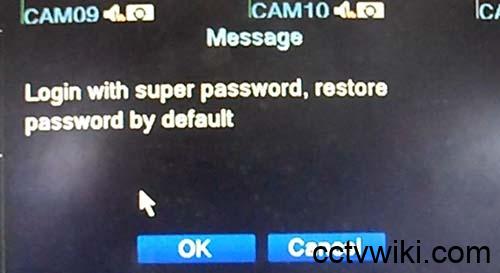
If you have forgotten the Admin password of an XMEye/XM-based DVR or NVR, you may be able to reset it using the Safe Code displayed by the device.
This method is intended for DVRs that support the Safe Code / Security Code password recovery mechanism.
What You Need
Before starting, prepare the following:
- The XMEye DVR/NVR.
- A monitor connected directly to the DVR.
- A mouse for operating the DVR interface.
- CCTV Super Password.
- The Safe Code displayed on the DVR.
Note: The Safe Code and Reset Code are generated based on information from the specific device. Do not use a code obtained from another DVR.
Step 1: Open the DVR Login Screen
Connect the DVR to a monitor using HDMI or VGA.
Open the login screen. The DVR will normally ask for an administrator username and password.
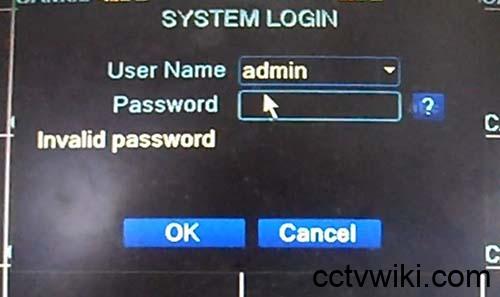
For example:
Username: admin
Password: ********
The administrator account is commonly:
adminIf you do not know the password, there is no need to keep trying different passwords. Proceed to the Safe Code recovery process.
Step 2: Get the Safe Code
On the DVR login screen, look for an option or icon related to password recovery, such as:
Forgot PasswordPassword Reset?Safe CodeSecurity Code- Key
The exact name and location may vary depending on the DVR firmware.
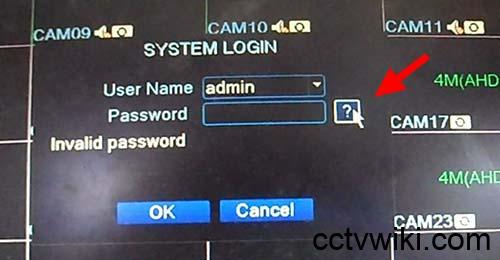
After opening the password recovery function, the DVR should display the information required to generate a reset code.
For example:
Safe Code: 123456Some DVRs may also display additional information such as the date or time.
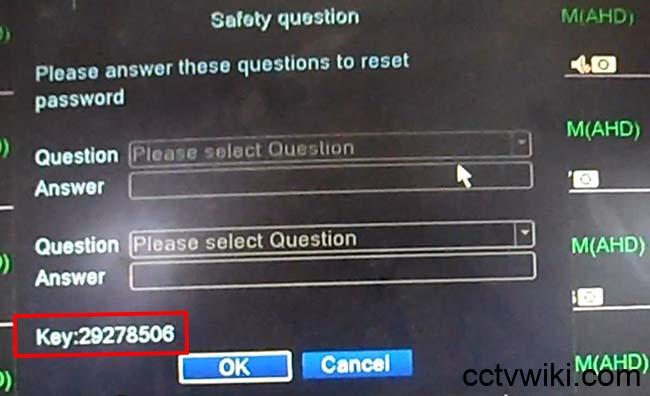
Record the information exactly as shown on the DVR.
Pay particular attention to:
- Safe Code
- Day
- Month
- Year
- Device time, if displayed
Do not change these values before generating the reset code.
Step 3: Open CCTV Super Password
Open CCTV Super Password on your computer or mobile device.
Select the password reset function for the corresponding XMEye/XM Xiongmai DVR.
Enter the Safe Code obtained from the DVR.
If the application asks for additional information, enter exactly what is displayed on the DVR.
For example:
Safe Code: 123456
Date: 09/08/2026
After entering all required information, generate the reset code.
Step 4: Generate the Reset Code
CCTV Super Password will process the Safe Code and generate a code that can be used to reset the DVR password.
Depending on the firmware, this code may be referred to as:
- Reset Code
- Master Code
- Security Code
- Password Reset Code
For example:
Reset Code: XXXXXXDo not confuse the Safe Code with the Reset Code.
| Code | Purpose |
|---|---|
| Safe Code | Code displayed by the DVR |
| Reset Code | Code generated for resetting the DVR password |
Step 5: Enter the Reset Code into the DVR
Return to the DVR login screen.
Enter:
Username: admin
Password: Reset Code
Then click:
OK / Login / Confirm
If the Reset Code is valid, the DVR will accept the code and perform the password recovery process.
Depending on the firmware, the DVR may:
- Log in directly.
- Display a successful reset message.
- Ask you to create a new password.
- Restart automatically.
Step 6: Set a New Password
After regaining access to the DVR, set a new Admin password.
Use a strong password and keep it in a secure location.
For example:
Username: admin
Password: Your-New-Password
Do not use the example password above on your actual device.
Important Notes
1. Always use the Safe Code from the actual DVR
Do not use a Safe Code obtained from another device.
The reset code depends on the information provided by the DVR and may vary between devices and firmware versions.
2. Check the DVR date and time
If the reset method requires the device date or time, use the exact information currently displayed on the DVR.
An incorrect date or time may result in an invalid Reset Code.
3. Avoid repeated incorrect attempts
If the Reset Code does not work, check:
- Safe Code.
- Date.
- Time.
- DVR model or device type.
- Firmware version.
- The reset method selected in CCTV Super Password.
4. The Reset Code is not a universal password
There is no single Reset Code that works on every XMEye DVR.
The code must be generated based on the information provided by the target device.
Quick Summary
The complete password reset process is:
XMEye DVR
    │
    │ Displays Safe Code
    ▼
Safe Code
    │
    │ Enter into CCTV Super Password
    ▼
CCTV Super Password
    │
    │ Generates Reset Code
    ▼
Reset Code
    │
    │ Enter into DVR
    ▼
DVR Password Reset
Quick Steps
1. Open the DVR login screen.
2. Obtain the Safe Code.
3. Open CCTV Super Password.
4. Enter the Safe Code and any required device information.
5. Generate the Reset Code.
6. Enter the Reset Code into the DVR.
7. Log in and set a new password.
Conclusion
For XMEye DVRs that support the Safe Code password recovery mechanism, resetting a forgotten Admin password can be done without opening the DVR or modifying its hardware.
Simply obtain the Safe Code from the DVR, enter it into CCTV Super Password to generate the Reset Code, and then enter the generated code back into the DVR to recover access.
