
 Check Port Open
 Disk Calculator
 Camera Calculator
 DMSS QR Generator and Decoder
 Super Password
 CCTV Quiz
 Facebook Profile Search

If an IMOU camera does not appear on your recorder, or remains offline after being added, check its ONVIF settings, TCP port and firmware compatibility. The supplied IMOU update guide describes changes to camera connectivity alongside new NVR voice control and remote camera connection features.
This article explains the guide’s setup steps for users and installers. Check your specific model, firmware and available menus before applying them: the document does not provide a complete compatibility list.
What has changed?
| Area | Update described in the guide |
|---|---|
| ONVIF | Disabled by default; enable it when using an ONVIF connection |
| TCP port | New devices and firmware use 36666 instead of 37777 |
| Adding cameras to an NVR | Check firmware, TCP port and the Encrypt setting |
| AI Agent | Activate by voice or mouse click |
| Remote connection | Supported Wi-Fi/PoE cameras and the NVR must share an account |
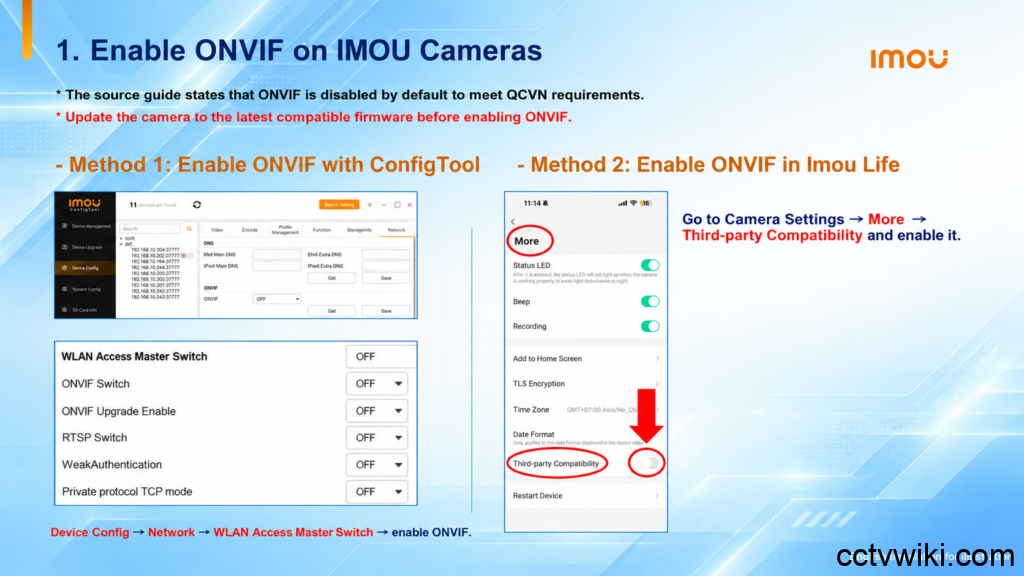
How to enable ONVIF on IMOU cameras
The guide states that ONVIF is disabled by default on cameras covered by the update. If you need an ONVIF connection to a compatible recorder or application, check this setting before configuring that connection.
First, update the camera to the latest firmware appropriate for its model. The guide provides two ways to enable ONVIF.
Enable ONVIF through ConfigTool
- Open ConfigTool and select the camera.
- Go to Device Config → Network.
- Locate the WLAN Access Master Switch area shown in the guide.
- Enable ONVIF / ONVIF Switch and save the configuration.
Menu labels and placement may vary. The reference screenshot shows a separate ONVIF Switch, so confirm that the ONVIF setting itself is enabled.
Enable ONVIF through Imou Life
- Open Imou Life and select the camera.
- Open the camera’s settings and select More.
- Find the third-party compatibility option.
- Enable it as illustrated in the guide.
The source app screenshot labels these options “Thêm” and “Tương thích với bên thứ ba.” English wording may differ by app version.
IMOU TCP port 36666: what to check when adding a camera
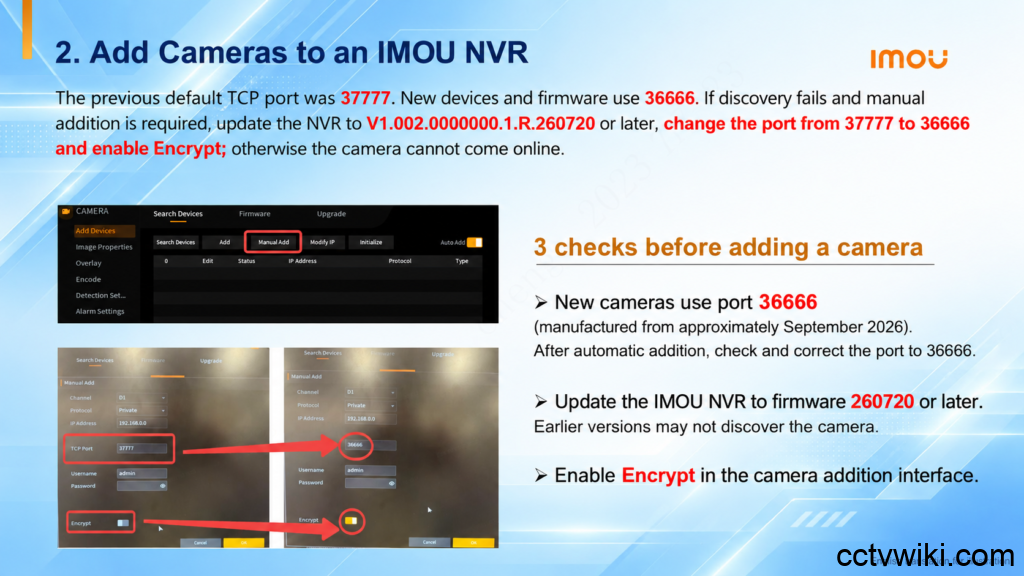
The guide identifies 37777 as the previous default TCP port and 36666 as the port used by new devices and firmware. Its notes refer to cameras manufactured from approximately September 2026, so check actual device settings when working with a mix of older and newer cameras.
If discovery fails or you need to add a camera manually, verify all three items:
- NVR firmware: use V1.002.0000000.1.R.260720 or later, with firmware appropriate for the recorder model.
- TCP Port: for cameras using the new port, change 37777 to 36666 in the camera addition interface.
- Encrypt: enable Encrypt as instructed in the guide.
Save the configuration, then check the camera’s online status and live view. If automatic addition leaves the camera offline, reopen the channel settings to verify the port and Encrypt option.
Keep ONVIF and the TCP port setting separate. The manual addition example in the document uses the Private protocol. It does not establish 36666 as the port for every ONVIF configuration.
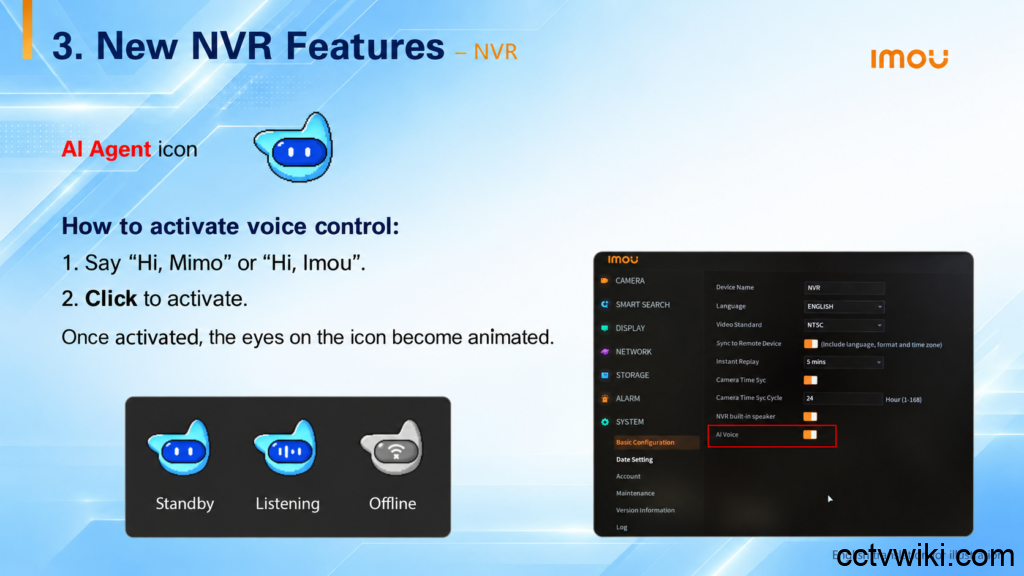
AI Agent brings voice control to IMOU NVRs
The guide introduces AI Agent for accessing recorder functions by voice. Activate it with “Hi, Mimo” or “Hi, Imou”, or click to activate. The eyes on the assistant icon animate when it becomes active.
The listed functions include:
- Live viewing: change split-screen layouts and zoom the image.
- Camera controls: control audio, sirens, white lights, PTZ movement and smart tracking.
- Image settings: flip the image and enable or disable WDR.
- Device and protection settings: open device addition and configure motion, human or vehicle detection.
- Playback and search: access recorded video and search for people or vehicles by descriptive characteristics.
Examples in the guide include finding a person wearing red or a white Jeep. Availability depends on what the system supports. The document does not specify a full model list, supported voice languages or exact command syntax, so confirm those details on your device before relying on a particular function.
Connect remote cameras to an IMOU NVR
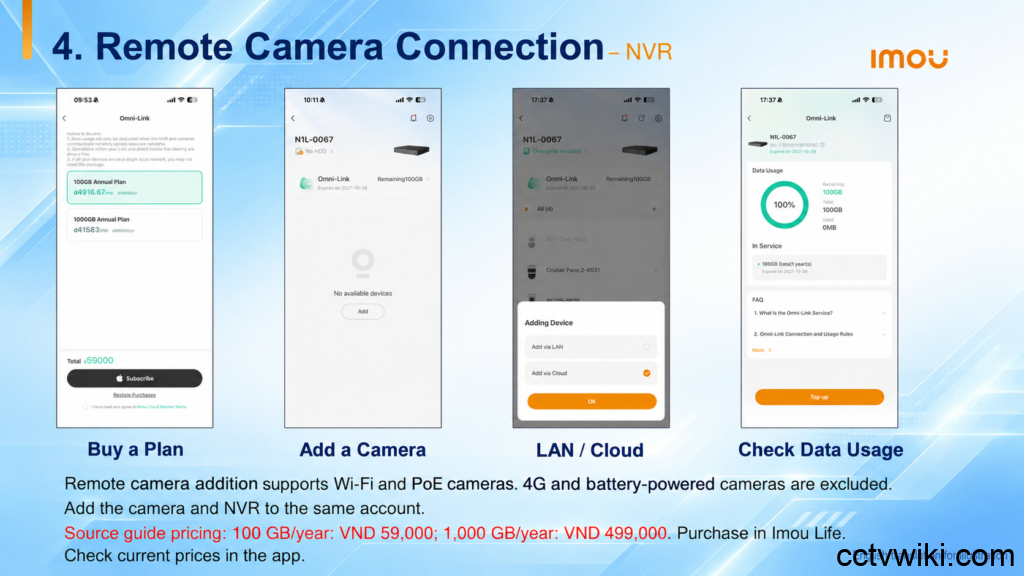
The guide introduces remote camera connections through an Omni-Link interface in Imou Life. It specifies support for Wi-Fi and PoE cameras, with both the camera and NVR added to the same account. 4G cameras and battery-powered cameras are excluded from the described feature.
The illustrated workflow is to purchase a plan in Imou Life, open camera addition, select Add via Cloud for a remote connection and monitor data usage. The interface also offers Add via LAN for local network connections.
The document lists annual plans of 100 GB for VND 59,000 and 1,000 GB for VND 499,000. These are source-document prices. Check the app for applicable pricing, service terms and how the allowance is measured before purchasing. Do not assume that the plan allowance represents NVR hard-drive capacity or a guaranteed recording retention period.
Frequently asked questions
The update guide says it is disabled by default on the cameras covered. Enable it through ConfigTool or the third-party compatibility setting in Imou Life after installing suitable camera firmware.
The guide specifies 36666, replacing 37777 for the devices and firmware it describes. Verify the camera’s actual configuration.
Check that the NVR meets the stated firmware requirement, Encrypt is enabled and the camera connection details are correct. For an ONVIF connection, also verify that ONVIF is enabled on the camera.
No. The described feature covers Wi-Fi and PoE cameras sharing the same account as the NVR, and explicitly excludes 4G and battery-powered cameras.
Get your system ready before adding cameras
Record the camera and NVR model numbers and firmware versions, check ONVIF status, and confirm the TCP port and Encrypt setting. For remote connections, also verify account ownership and plan conditions. This gives you a clear starting point when troubleshooting an offline camera.
